Use Plan mode to investigate a task and review a proposed approach before you authorize execution. This tutorial prepares a short comparison from two approved notes. It is for a Linux terminal user who has configured a model through Getting started .
The controls below target Sonny 0.12.7. The worked run uses a separate,
explicit control database in a disposable directory. This matters in this
release: with the default personal-profile TUI, a model can save a ready plan
while /plan show reports that the session has no plan. That path did not complete
the review/approval workflow in qualification. Stop if you see that result; do not
try to approve an unseen revision or move database rows between profiles.
Prepare the session
Use non-sensitive fixture notes and a new directory. Configure an approved model first; its provider receives the notes, prompts and conversation. This example uses the public review Recipe from the cookbook :
mkdir sonny-plan-review
cd sonny-plan-review
mkdir approved-recipes
curl --fail --location https://sonny.sh/examples/cookbook/review-work.yaml --output approved-recipes/review-work.yaml
sonny recipe validate ./approved-recipes/review-work.yaml
sonny recipe add ./approved-recipes --name sonny-docs-review --no-model-catalog --update-policy manual
sonny isolation doctor
sonny run --new --file ./approved-recipes/review-work.yaml --control-db "$PWD/plan-control.db" --no-trace
Inspect the YAML before registration. Use another source name if
sonny-docs-review already exists. Registration records a local Recipe source and
copies its contents into Sonny’s cache; it adds no model catalog. The run creates
a new conversation in the session store and a separate plan-control.db, with
possible SQLite sidecar files, in this directory. This flag selects a control
store; it does not move existing personal-profile work or change the tool
execution boundary. Check the actual isolation result and honor any policy refusal. A custom runtime
can report that daemon session sync is unavailable; this example remains local.
Use Ctrl+X to dismiss that notification, without treating it as an established
Desktop or daemon connection.
This Recipe does not restrict execution tools. The initial Plan phase applies a host-enforced restriction; after Proceed, the selected execution Recipe and normal approvals apply. The example asks for a conversation draft with no project edits or external actions. That scope instruction is not an additional sandbox.
Role Recipes
plan-create and plan-execute are role Recipes, separate from your session’s
Recipe. They are not embedded in every installation. Obtain the applicable
versions from the authorized Recipe source supplied by your administrator or
CodePros access agreement
, and follow your
organization’s installation and trust process.
If a role Recipe is absent, Sonny reports its unavailability and can keep your
session Recipe. The worked run below exercised that fallback with review-work;
it did not install private role Recipes. An installed role Recipe that fails
validation, trust or preflight is refused. Resolve that error before continuing.
Do not interpret a broken Recipe as the same case as an absent one.
Research the notes in Plan mode
Enter these controls in the TUI:
/plan on
/plan status
/plan also enters Plan mode. Shift+Tab toggles the requested mode, and
/plan off requests Execute mode. Check the status before submitting work.
During an active turn, a mode change is pending until the next turn boundary;
the active turn keeps its original mode. A prompt already queued retains the
mode captured when it was queued. A later toggle does not rewrite that prompt.
Submit these approved inputs as one message:
Note A reports 30 of 40 requests answered within one day.
Note B reports 35 of 50 requests answered within one day.
Compare the rates and identify missing satisfaction evidence. Do not change
files, publish anything, or contact an external service.
The same approved fixture notes are available as a download. Inspect the research response: A is 75%, B is 70%, and neither note contains satisfaction survey evidence. A faster response rate does not establish that customers were more satisfied. Correct an unsupported claim before planning.
Ask for a structured plan
While still in Plan mode, submit:
Create a structured plan using plan_draft and mark the valid revision ready.
Objective: prepare a two-sentence comparison citing Notes A and B.
Use one inline task T1, with a review verification V1. V1 must check both source
labels, 30/40 = 75%, 35/50 = 70%, and the missing satisfaction survey.
Keep the result in the conversation. No project edits or external actions.
Stop for my review before execution.
The example plan document shows the structured task and review check used in qualification. Sonny supplies the stored identity, digest and observed state; this JSON is not an approval record.
The expected result is a stored review_ready revision, with the objective,
task, verification and budget visible in Sonny. A prose answer saying “here is
my plan” does not establish that a structured revision exists.
Open the revision:
/plan show
Read the complete plan, scrolling with the arrow keys or Page Down. Review its scope, source assumptions, task actions, requested effects, verification and retry budget. Confirm that T1 produces only the requested draft and that V1 requires your review. The plan viewer records which revision you inspected.
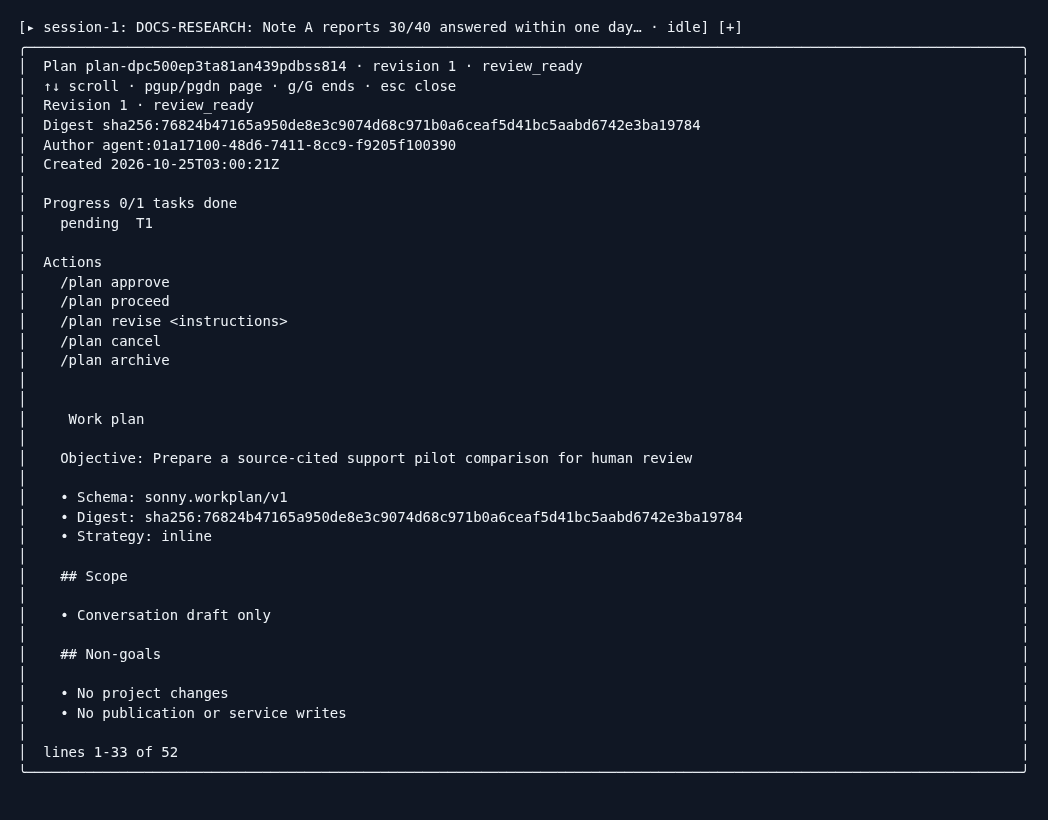
Sonny 0.12.7: rendered terminal cells captured from the controlled TUI run with an explicit disposable control database. This is actual run output, not a reconstruction from a source fixture.
Press Esc to close the viewer. If the plan needs correction, use
/plan revise <your instructions>, wait for the new ready revision and open it
again. The angle-bracket text denotes your replacement instructions. Review the
new revision before approving it.
Approve and execute the reviewed revision
Approval and execution are separate decisions in this sequence:
/plan approve
/plan proceed inline
Approval binds the revision and digest you reviewed. Without a reviewed revision,
Sonny asks you to run /plan show first. If the revision or its reviewed execution
conditions have changed, stop and inspect the new state. Approval does not bypass
tool policy, trust, isolation or later permission checks.
Proceed starts the first ready task and switches to Execute mode. It can
also approve a review_ready revision in the same operation; the two-command
sequence above makes your approval decision explicit. Wait for the active turn
to settle before issuing it. Repeating Proceed on the active plan starts no
second run. This tutorial uses inline execution; it does not launch a worker.
Inspect the returned draft. The controlled run produced:
Note A: 30 of 40 requests were answered within one day (75%); Note B: 35 of 50 (70%). No satisfaction survey was supplied.
Your model’s wording can differ. The source labels, arithmetic and missing survey must still be correct.
Inspect and confirm the evidence
Open /plan show again. A model’s PASS report for V1 is not a human review.
In the worked run, the host stored that claim as INCONCLUSIVE, reported and
left T1 awaiting human confirmation:
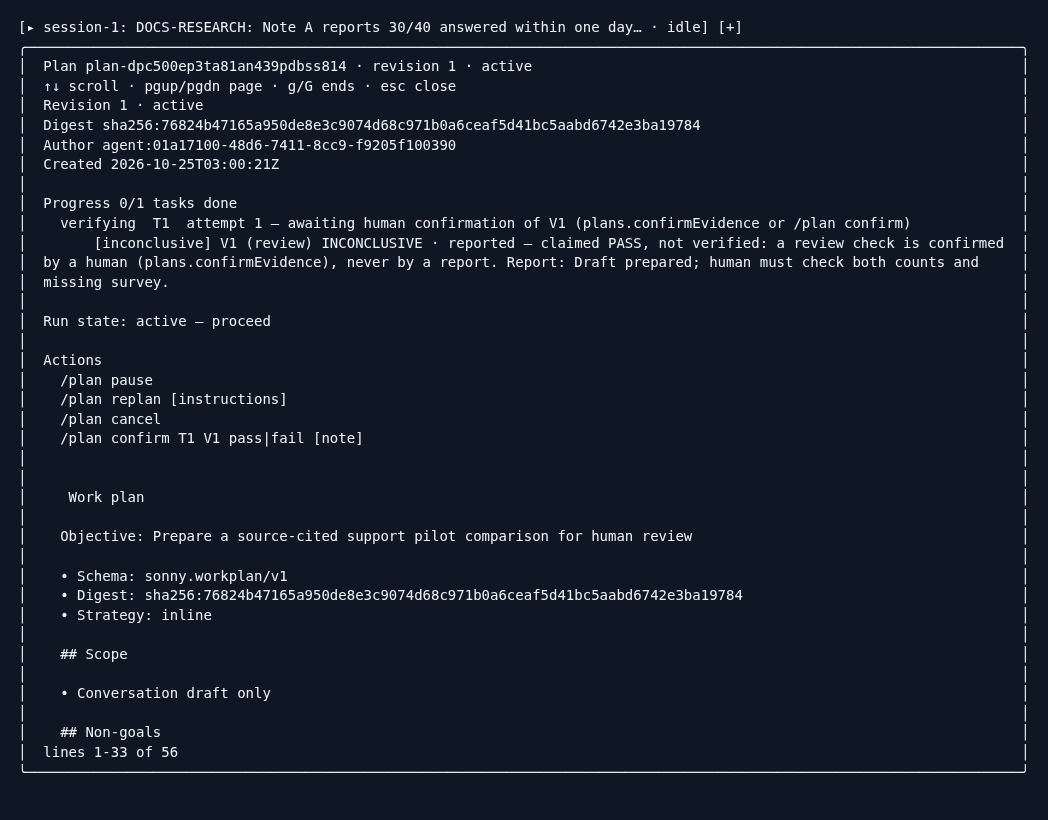
Actual controlled-run terminal capture before human confirmation.
Close the viewer with Esc. Check the draft against both original notes yourself. Only after that review, enter:
/plan confirm T1 V1 pass Checked both source counts, 75%, 70%, and the missing survey.
/plan show
The expected result is a completed plan, one verified task, and a human_confirmed
PASS for V1. For a failed or incomplete check, use fail, blocked, not_run or
inconclusive instead of pass, with a note explaining the missing evidence.
Confirmation is a recorded verdict, not a request for the model to review itself.
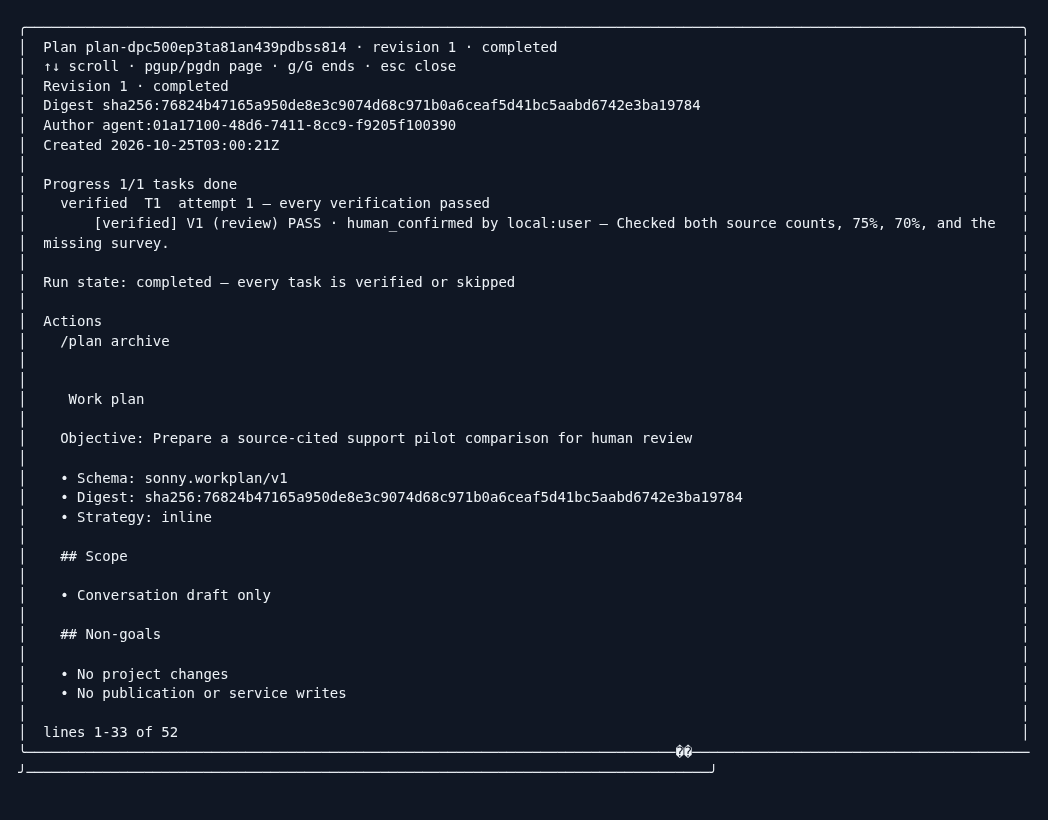
Actual controlled-run terminal capture after the typed human confirmation.
Revise, pause or cancel safely
| Situation | Control and expected behavior |
|---|---|
| Ready plan needs changes | /plan revise <instructions> requests a new revision; review it again. |
| Active work needs a new approach | /plan replan <instructions> pauses the run and requests a revised plan. Inspect which completed checks carry forward. |
| You want to stop scheduling more tasks | /plan pause pauses the run. A turn already in progress can continue. |
| You want to interrupt the active turn | Press Esc. Inspect partial output and any completed tool effects. |
| You no longer want this plan executed | /plan cancel cancels the plan; it does not stop an already running turn or undo earlier effects. |
| You want to continue a paused plan | Request Execute mode with /plan off, inspect the run, then /plan resume. A completed plan needs no resume. |
| A newer plan exists while another is active | Status keeps the active or paused plan current and identifies the newer one. Resolve the current run before starting another; do not assume a newer draft replaced it. |
A changed workspace, Recipe, model or tool surface can invalidate the reviewed execution baseline. Inspect the reported drift before accepting it or replanning. Do not acknowledge uncertain effects merely to make a retry start. Cancelling, revising or deleting a conversation is not a rollback of published or external work.
What the Plan boundary permits
For an effective Plan turn, the host decides tool admission from sealed effect
descriptors. Project writes, arbitrary process execution, external mutation and
new worker spawns are refused. A read-looking tool name or an MCP readOnlyHint
alone grants nothing. Calling a write through tool_exec does not evade the check.
Planning still uses access: admitted local reads and the host’s exact permitted external-read names can supply evidence. The pinned release includes selected Atlassian reads and GitLab get/list/search reads, subject to the configured server and Recipe. It does not grant arbitrary network access or service writes. Provider requests continue. Sonny also persists plan documents, revisions, review records, session history and journals; logs, caches and indexes can change. A worker started by an earlier Execute turn can continue running. Plan mode does not make your whole filesystem or every process immutable.
Desktop equivalent
In a supported Desktop connection, use the Plan mode control and the Plan panel. Inspect the rendered revision and its evidence before Approve and Proceed. Ask for a revision, Pause run, Resume run, Replan, Confirm and Cancel plan correspond to the lifecycle decisions above. Check the role Recipe in force or its reported unavailability.
The daemon must serve the plans capability and the connection must carry verified human authority for approval and execution controls. An agent connection or an older daemon can lack these controls. A mode toggle alone does not establish that the structured-plan panel or approval authority is available.
Desktop panel components and the real Desktop transport workflow were exercised against controlled fixtures for this release. The images on this page are TUI captures; they do not certify a headed Desktop installation or a live account. See the Desktop guide for its connection model.
If the TUI cannot find its plan
With the default personal profile on 0.12.7, qualification observed this response after successful plan-authoring tool results:
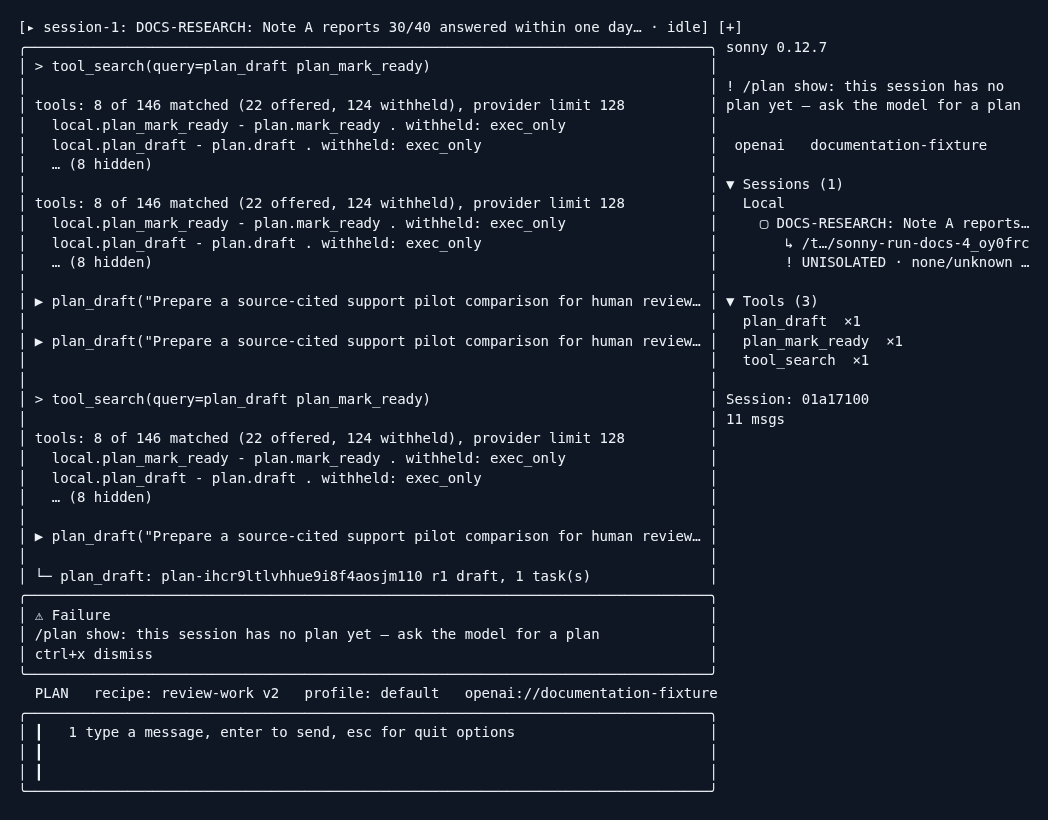
Actual default-profile failure capture. The successful explicit-control-store example does not establish that this default path works.
Stop that workflow and retain the diagnostic details for your authorized support channel. Do not copy control-store rows, grant files or session databases between profiles. A new explicit control store, as used in this disposable tutorial, is a separate session setup; it does not recover a missing personal-profile plan.
Continue with sessions and continuation , goals and delegated work or the non-coding cookbook .